AML Onboarding & VOI

Compliant client onboarding and identity verification

AML/CTF Compliance Centre

Complimentary, all-inclusive AML/CTF solution

Searches and Certificates

Order all your searches and certificates in one place

Property Interface

A dynamic, matter specific environment

Family Law Interface

Manage family law matters with one solution

Wills & Estates Interface

Simplify estate administration and planning

Contract Review tool

Review contracts faster with AI-assisted precision

Settlement Services

Electronically lodge registry documents and settlements

Financial Disclosure

Securely collate client financial documentation

Process Serving

Serve documents fast with tracking

Practice Management Integration

Streamline administrative tasks and optimise workflows

Integration Support Guides

Access our support guides for comprehensive self-help assistance

InfoTrack Connect

Allows suppliers to connect their products and services with the InfoTrack Ecosystem

Next Gen Integration

Learn how software and integrations can transform the way you work

News and Insights

Find out the latest industry updates

AML/CTF Training

Take on compliance with confidence

Events and Webinars

Take your professional development to the next level

Cyber Security Awareness Training

Build your cyber resilience

Property Market Update

Discover leading edge property insights

2025 State of Real Estate Report

Insights from Australian Buyers and Sellers

playbook playbook white logo
Monthly digest covering the latest news for legal and conveyancing industries.

About Us

Learn more about who we are and what we do

Our Team

Find out who drives InfoTrack's innovation and strategy

Join Us

Be a part of our award-winning culture

Media

Featured media releases and mentions

Contact

Get in touch with a member of our team

Awards

Showcasing our people, solutions and service

Discover our award-winning technical innovations.
Home » Integration Support » MatterX

MatterX

From the Administrator Role Center, navigate to Administration > Configurations > Company. Setup


From the Company Setup page, select InfoTrack Setup.


From the InfoTrack Setup Page, complete the form.

1. User
  • User Name – provided by InfoTrack.
  • Password – provided by InfoTrack.
2. Invoicing
  • Auto. Post: Yes.
3. Vendor
  • No. – select or create the InfoTrack vendor record.


Resource
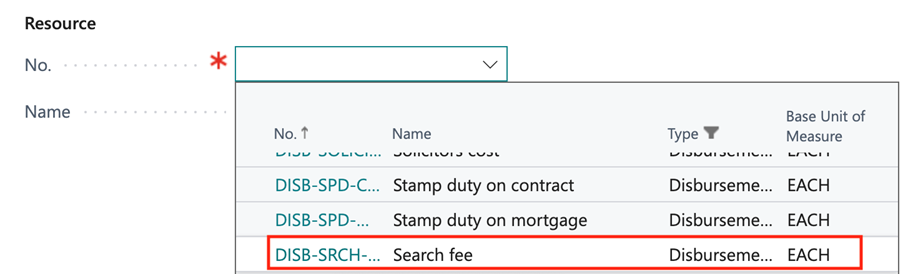
  • No. – select the DISB-SRCH-FEE or another disbursement resource to charge and track the searches against.


Save to SharePoint: Yes

Save to folder: InfoTrack

Note that an Microsoft 365 Admin user will need to perform this step as Azure consent is required.

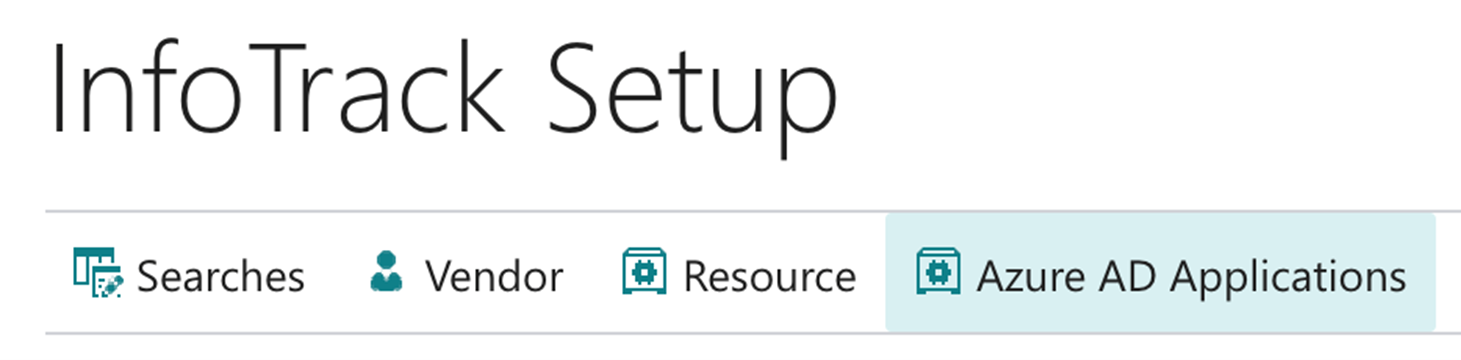
From the InfoTrack Setup page, select Azure AD Applications.


From the Microsoft Entra Applications page, click the Client ID field of the InfoTrack line.


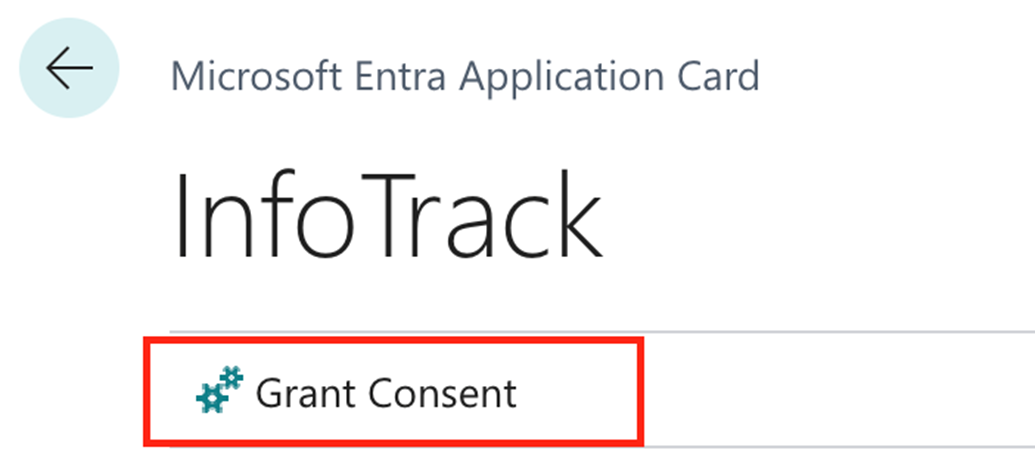
Click Grant Consent and accept the permission requests.


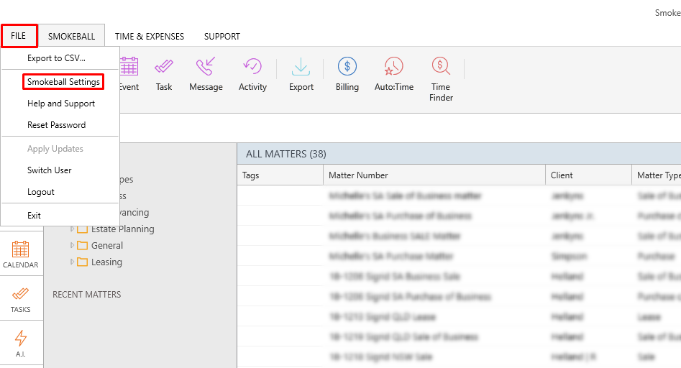
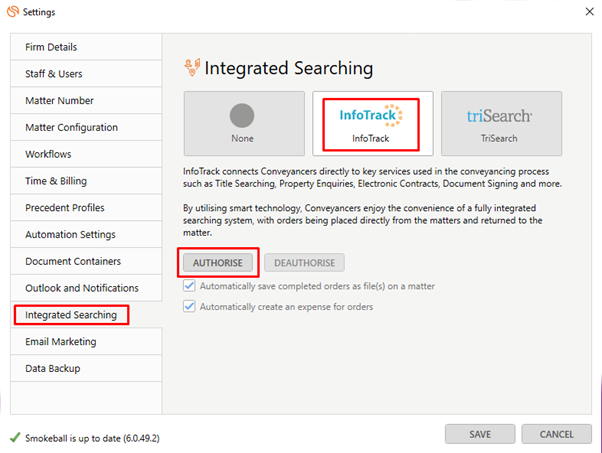
1. Login to Smokeball  2. Go to the Smokeball Settings  File → Smokeball Settings 3. Select InfoTrack as your search Provider Integrated Searching → Select InfoTrack → Click Authorise
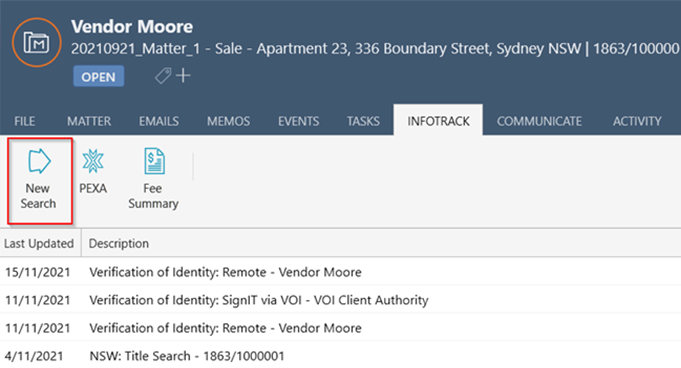
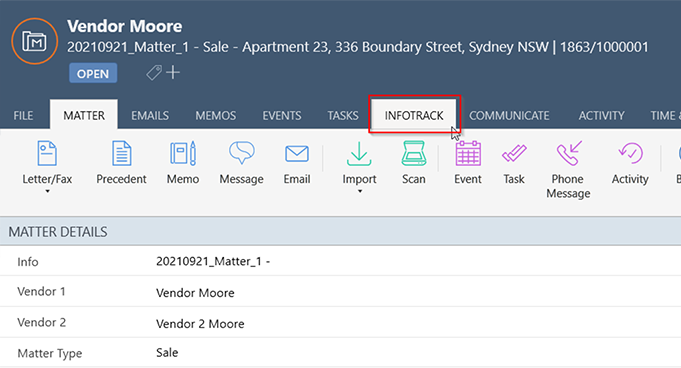
Open a matter and click on the InfoTrack Tab In the tab, it will show the history of orders for that matter, to start searching with InfoTrack just click on the ‘New Searches’ Button which will direct you to the InfoTrack website.