Onboarding & VOI

Compliant client onboarding and identity verification

AML/CTF Compliance Centre

Complimentary, all-inclusive AML/CTF solution

Searches and Certificates

Order all your searches and certificates in one place

Property Interface

A dynamic, matter specific environment

Family Law Interface

Manage family law matters with one solution

Wills & Estates Interface

Simplify estate administration and planning

Contract Review tool

Review contracts faster with AI-assisted precision

Settlement Services

Electronically lodge registry documents and settlements

Financial Disclosure

Securely collate client financial documentation

Process Serving

Serve documents fast with tracking

Practice Management Integration

Streamline administrative tasks and optimise workflows

Integration Support Guides

Access our support guides for comprehensive self-help assistance

InfoTrack Connect

Allows suppliers to connect their products and services with the InfoTrack Ecosystem

Next Gen Integration

Learn how software and integrations can transform the way you work

News and Insights

Find out the latest industry updates

AML/CTF Training

Take on compliance with confidence

Events and Webinars

Take your professional development to the next level

Cyber Security Awareness Training

Build your cyber resilience

Property Market Update

Discover leading edge property insights

2025 State of Real Estate Report

Insights from Australian Buyers and Sellers

playbook playbook white logo
Monthly digest covering the latest news for legal and conveyancing industries.

About Us

Learn more about who we are and what we do

Our Team

Find out who drives InfoTrack's innovation and strategy

Join Us

Be a part of our award-winning culture

Media

Featured media releases and mentions

Contact

Get in touch with a member of our team

Awards

Showcasing our people, solutions and service

Discover our award-winning technical innovations.
Home » Integration Support » PracticeEvolve

PracticeEvolve

InfoTrack provides a free plugin which allows you to perform property, company and personal searches from within your matters in PracticeEvolve.

The search results are posted back to the matters and the costs are automatically created as disbursements so you can recover these costs from your clients.

You will need to have or to setup an account with InfoTrack and know your InfoTrack username and password to setup the plugin.
Step 1: Setup InfoTrack as a Search Provider.
Open a matter, Go to the Search Requests tab, Select Search in the top ribbon and then Click on the Provider Settings icon.
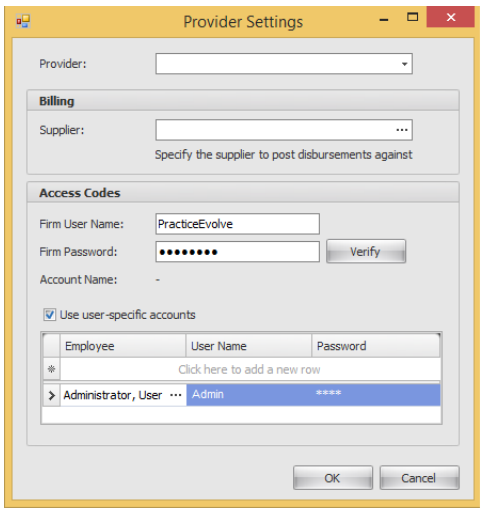


Step 2. Add the InfoTrack Billing Supplier.
Click Create Supplier icon under the Office tab.
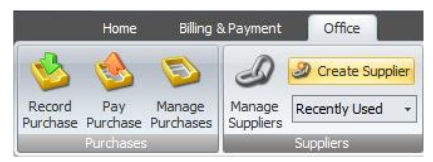


Step 3. Setup InfoTrack user credentials.
A single InfoTrack login can be used for all searches or you can setup individual InfoTrack logins for each staff member in the firm. We recommend individual logins as this provides full visibility of searches ordered.
Enter the InfoTrack credential for each user
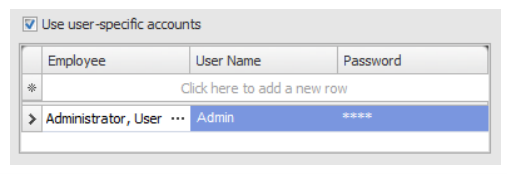


Step 4. Add the InfoTrack firm username and password.
These credentials are used to connect to InfoTrack if a individual user does not have their own InfoTrack credentials configured.



Step 5. Set InfoTrack Search Permissions.
The permission relating to accessing searches in PracticeEvolve is called Searching Permission and is located under the Manage Permissions icon. There are three levels of searching permissions:
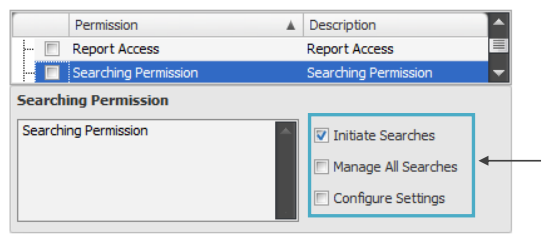


  • Initiate Searches Allows users to run searches. They will be able to see the Search Requests tab in the matter, but not the Manages Requests icon under the Home tab.
  • Manage All Searches Allows users to see every search that has been run by a user for any matter. They will be able to see the Manage Requests icon under the Home tab.
  • Configure Settings Allows users to see and alter the Provider Settings.
Now you are ready to begin using InfoTrack integrated with Actionstep.

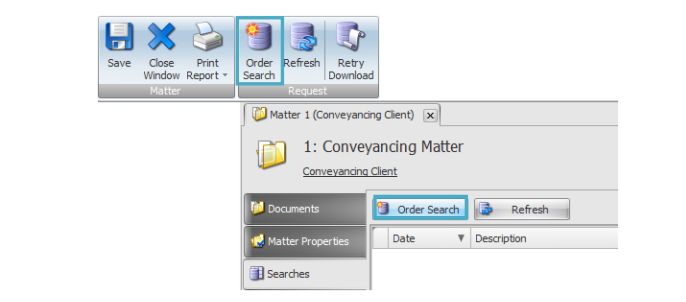
Once the Search Provider Setup has been completed, open Matter and select the Searches tab.


To Order a new Search, click the Order Search button.


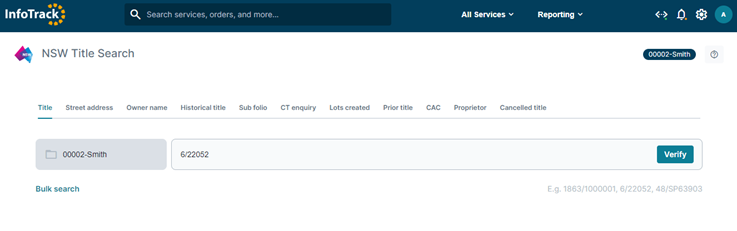
The InfoTrack website will open using the default browser with your PracticeEvolve matter information pre-populated.


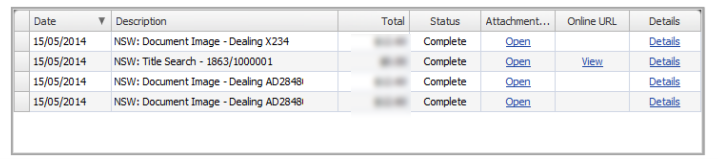
Completed Search results will be returned to PracticeEvolve automatically.

Once a search has been completed, the document will be automatically saved to a Search Documents folder in the Document Explorer. If you don’t have a Search Documents folder, one will be automatically created for you the first time you run a search.


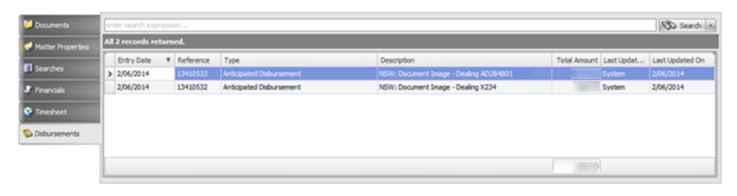
Once the search has been completed, an Anticipated Disbursement will be automatically added to the Disbursements tab on the matter.


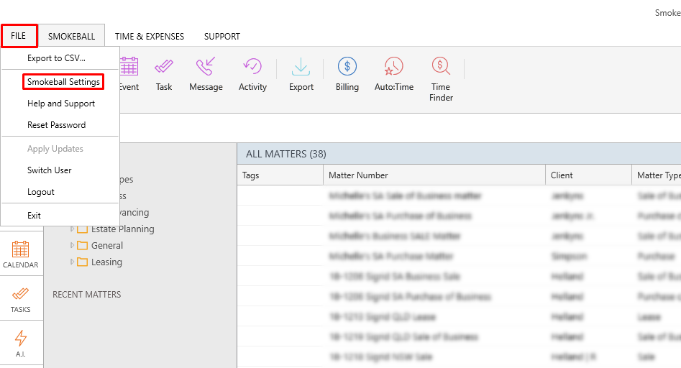
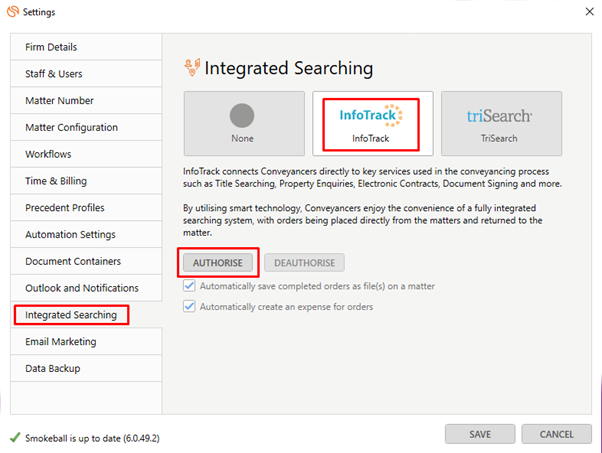
1. Login to Smokeball  2. Go to the Smokeball Settings  File → Smokeball Settings 3. Select InfoTrack as your search Provider Integrated Searching → Select InfoTrack → Click Authorise
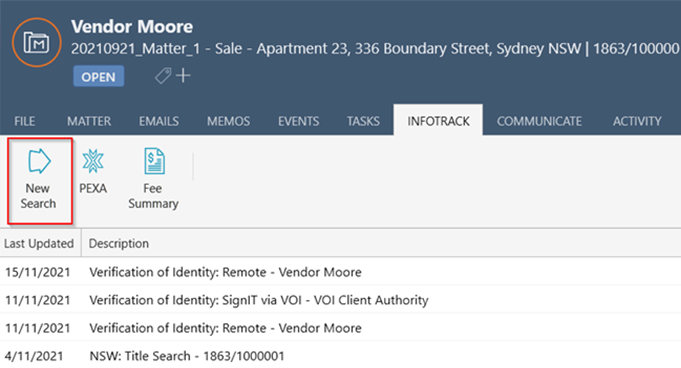
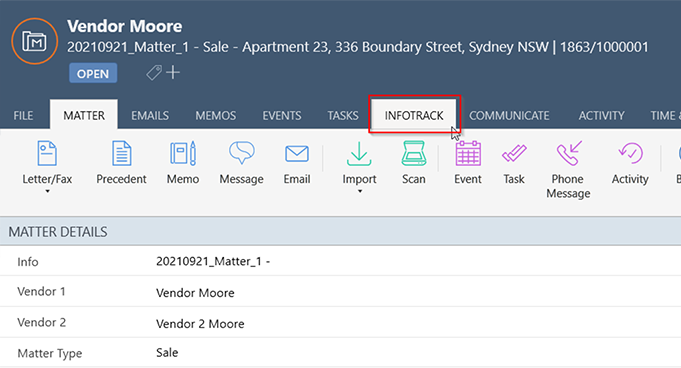
Open a matter and click on the InfoTrack Tab In the tab, it will show the history of orders for that matter, to start searching with InfoTrack just click on the ‘New Searches’ Button which will direct you to the InfoTrack website.